Note (archive): originally written in late 2024 — the FLUX / Stable Diffusion ecosystem has moved considerably since (newer model families, ComfyUI dominance, different installer UX). Pinning as-is for the archive; treat as historical.
Hello again.
Today I will show you how to easily install a local text-to-image tool on Windows that will work with a variety of user interfaces available.
You can run a number of different models as well.
Stability Matrix install
-
Go to Stability Matrix and download the latest release.
-
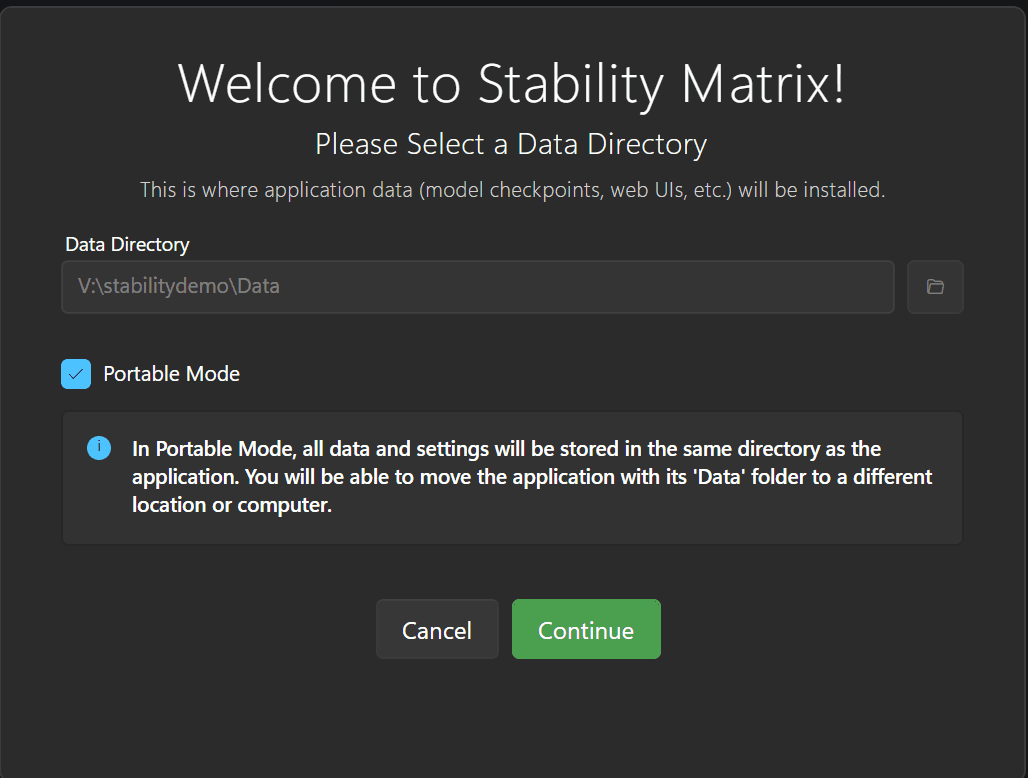
When the download is complete, go to your preferred storage place on your PC/network, make a new folder (mine is just named
stability matrix), and extract the executable file here.Note that the above step is unnecessary if you are not using Stability as a portable application, but for the purposes of this tutorial, and for my specific use case, I am.
-
Run Stability Matrix, and you will see this screen.
-
Continue with the setup wizard until you get prompted to choose your interface. Here I will be choosing Stable Diffusion WebUI Forge.
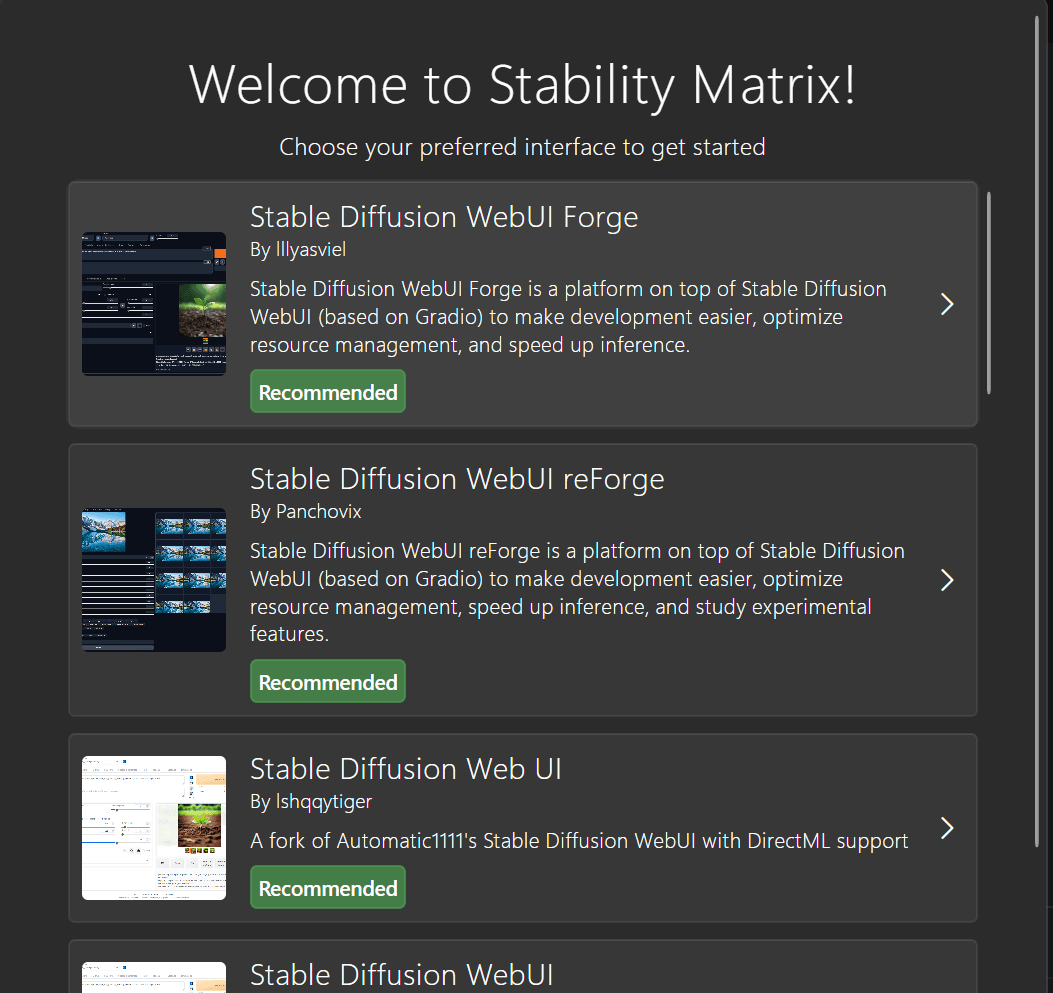
There are a number of different interfaces available, including ones not listed on the first launch like ComfyUI — an advanced but much harder-to-learn interface.
-
Next you will be asked what models you would like to use. A handful of options will be presented for both the Stable Diffusion 1.5 and XL base models.
Most people will likely opt for the 1.5 models, however I will say, running an RTX 3060 12GB card myself, XL runs speedily for up to 1000×1000 pixel generation, and fine for up to 1920×1080. Anything more and this card struggles.
You can additionally find more bespoke models online on websites such as Civitai and Hugging Face.
-
Note that Stable Diffusion models are very easy to set up, but FLUX-based models will require more tinkering. I may make a FLUX-specific tutorial at a later date.
-
When the model has been downloaded you should be greeted with a screen like this.
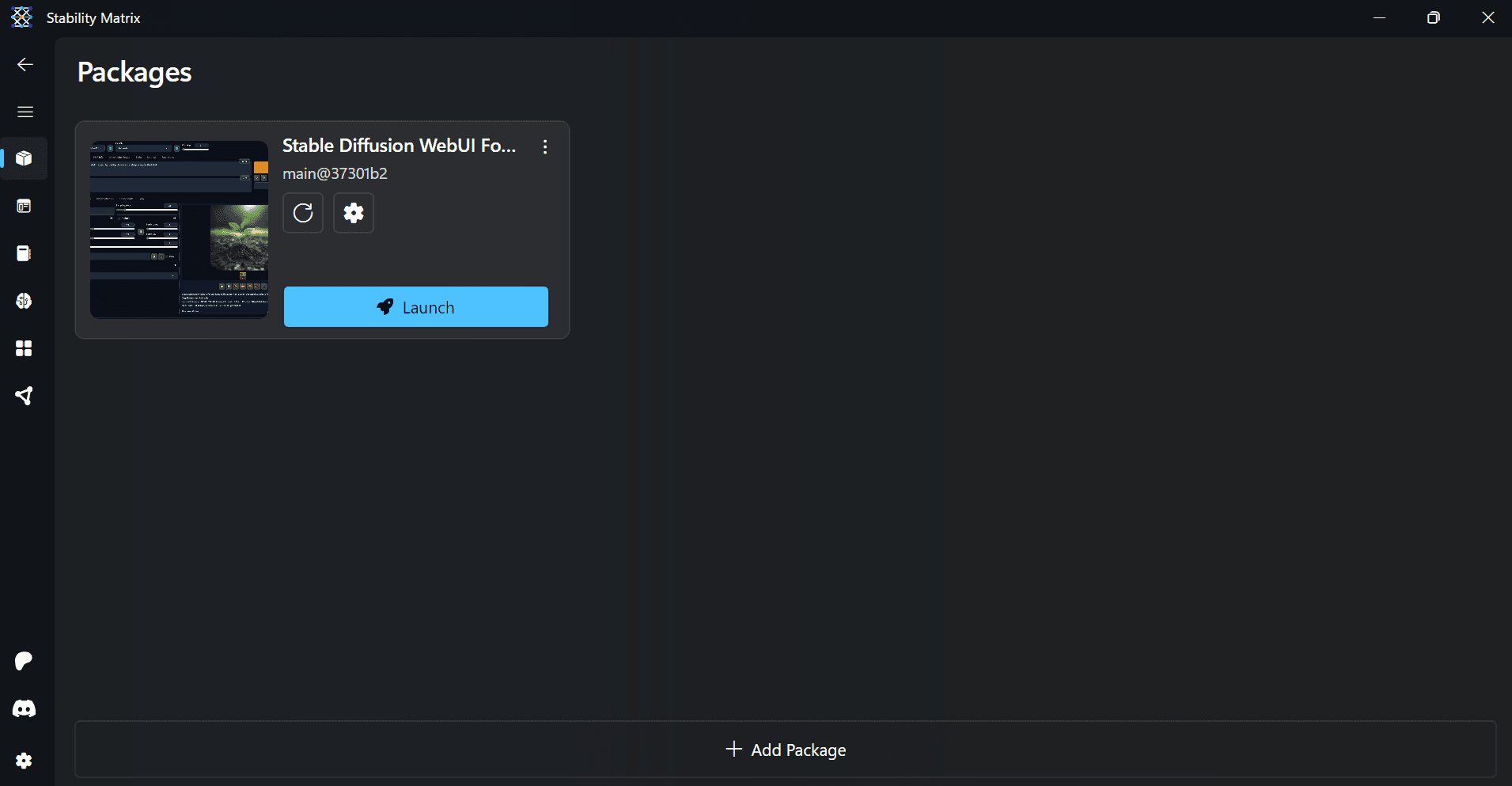
If you intend to only access the WebUI from this specific system, you can click Launch and ignore the below instructions until "How to use Stable Diffusion WebUI Forge".
If however you want to access it from other systems, mobile devices and the like, first click the gear icon.
Doing so will open the launch options.
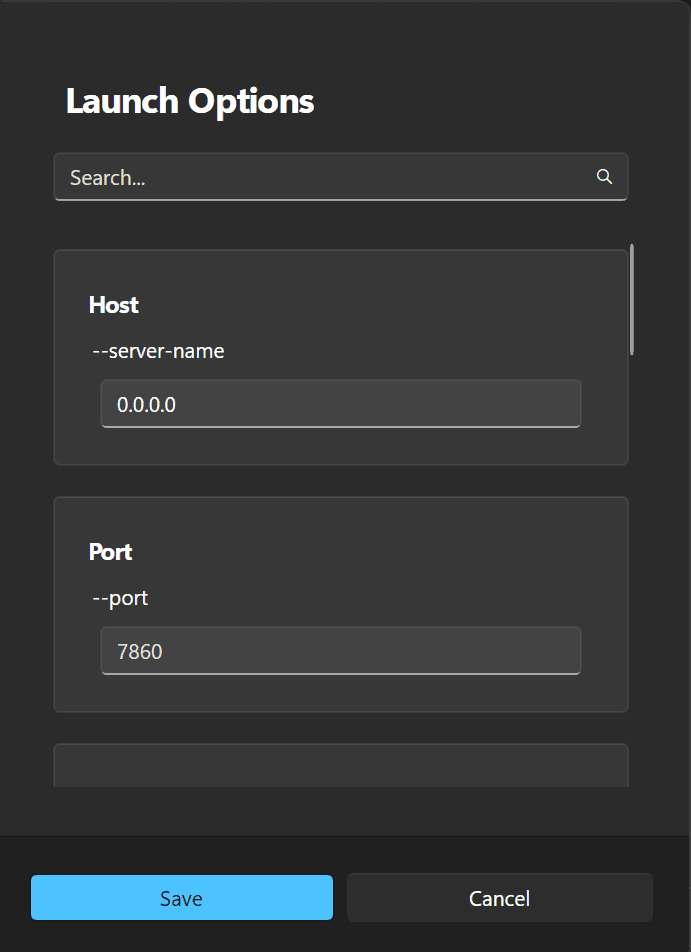
Your window should read localhost or 127.0.0.1 under the host section; changing this to 0.0.0.0 will allow you to connect to the WebUI via the IP address of the system running Stability.
To find out what said IP address is: press the Windows button on your keyboard, type cmd and hit enter. This opens a terminal. Type ipconfig and hit enter — you will get a semi-detailed view of your network interfaces, including IPv4. Look for something like 192.168.###.###.
192.168. is the default subnet most people are on; if you are on a different one, you likely didn't need me to tell you how to find your device's IP address.
This IP address and the port are what you enter into a web browser on your other devices to connect to the web interface, e.g. 192.168.0.13:7860.
How to use Stable Diffusion WebUI Forge
After launching the interface, it will take a while to get started. When it is done, it will open automatically in your default web browser and you will be greeted with the WebUI. If it does not open automatically, go to your preferred browser and search for localhost:7860.
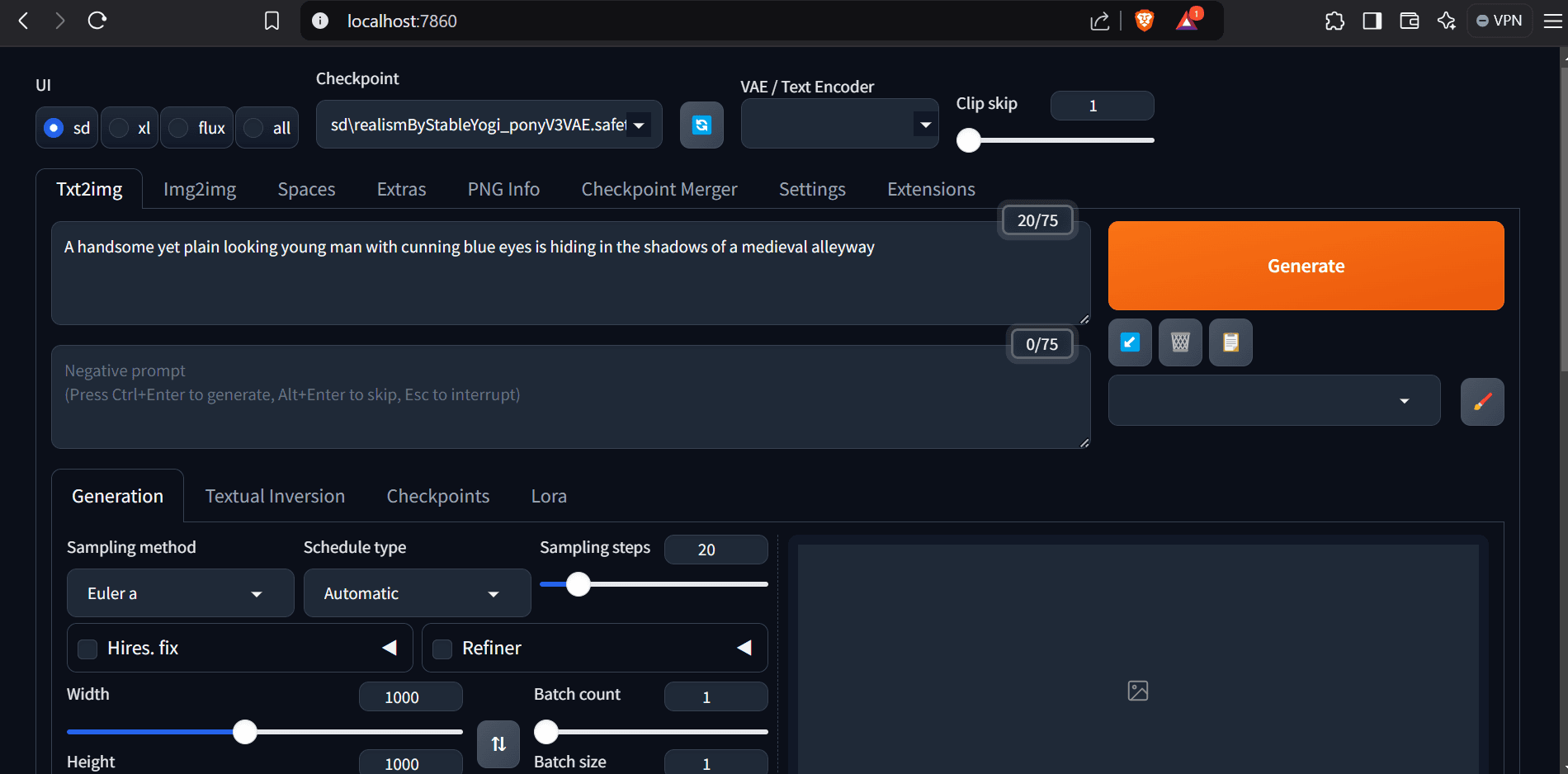
This is what the WebUI looks like, with Checkpoint being the model selection. You won't have my specific one.
A full deep dive into this WebUI is far above my paygrade, so this is where I will end this tutorial. I hope it was easy to follow and you will have fun enjoying our brave new world of AI.
This model with the above prompt created this image.

The aforementioned FLUX creates with the same prompt this:

My purpose for this prompt was a virtual webcam image for the D&D campaign I was in. The FLUX model was vastly superior for this.